If your Apple Watch is showing a Roll ring instead of the familiar Stand ring, your device is in Wheelchair Mode—a built-in feature designed to accurately track activity for wheelchair users. While this inclusive setting ensures fair and meaningful fitness tracking for those who rely on wheelchairs, it can be confusing if you don’t use one and suddenly see the Roll ring appear. The good news? Turning off Wheelchair Mode is straightforward—once you know where to look. Unlike accessibility features that can be toggled with button combinations, this setting is managed exclusively through the Health app on your iPhone, not on the Apple Watch itself. In this guide, you’ll learn exactly how to disable Wheelchair Mode, restore the standard Stand ring, and avoid common pitfalls that mislead users.
Access Health App on iPhone
The first and most crucial step to turning off Wheelchair Mode is opening the Health app on your paired iPhone. This cannot be done directly from the Apple Watch, as there is no setting within the Watch app or Settings app that controls mobility tracking.
Open the Health App
- Locate the Health app (blue heart icon) on your iPhone and tap to open it.
- Make sure you’re signed in with the same Apple ID linked to your Apple Watch.
- Allow time for data to load—this ensures your profile is fully synced before making changes.
🔍 Note: If the app prompts you to set up Health, your profile may be incomplete. Complete the setup first, as missing health details can interfere with syncing.
This app is the central hub for all personal health data, including activity, heart rate, sleep, and mobility settings. Any changes made here will automatically sync with your Apple Watch.
Navigate to Health Details

Once inside the Health app, you need to access your personal health profile to modify mobility-related information.
Tap Your Profile Icon
- In the top-right corner of the Health app, tap your profile picture or initials.
- This opens the Health Details section, where Apple stores key personal metrics like age, height, biological sex, and mobility status.
✅ Pro Tip: These details are used across Apple’s ecosystem to personalize fitness tracking. Changing them affects how your Apple Watch calculates calories, distance, and daily goals.
Apple uses this information to tailor your Activity rings and workout suggestions, which is why setting the correct mobility status is essential.
Enter Mobility Settings

Mobility is a dedicated category in the Health app that tells your Apple Watch how to interpret your daily movement.
Select “Mobility”
- Scroll down and tap “Mobility” under Health Categories.
- You’ll see an option labeled “Primary Mobility”, currently set to either Wheelchair or Upright.
⚠️ Warning: If “Wheelchair” is selected, your Apple Watch tracks propulsion time instead of standing time. This means the Roll ring counts minutes you’re actively moving your wheelchair, replacing the Stand ring entirely.
This is not a glitch—it’s a deliberate, inclusive design choice by Apple to provide equitable fitness tracking for wheelchair users.
Switch to Upright Mode
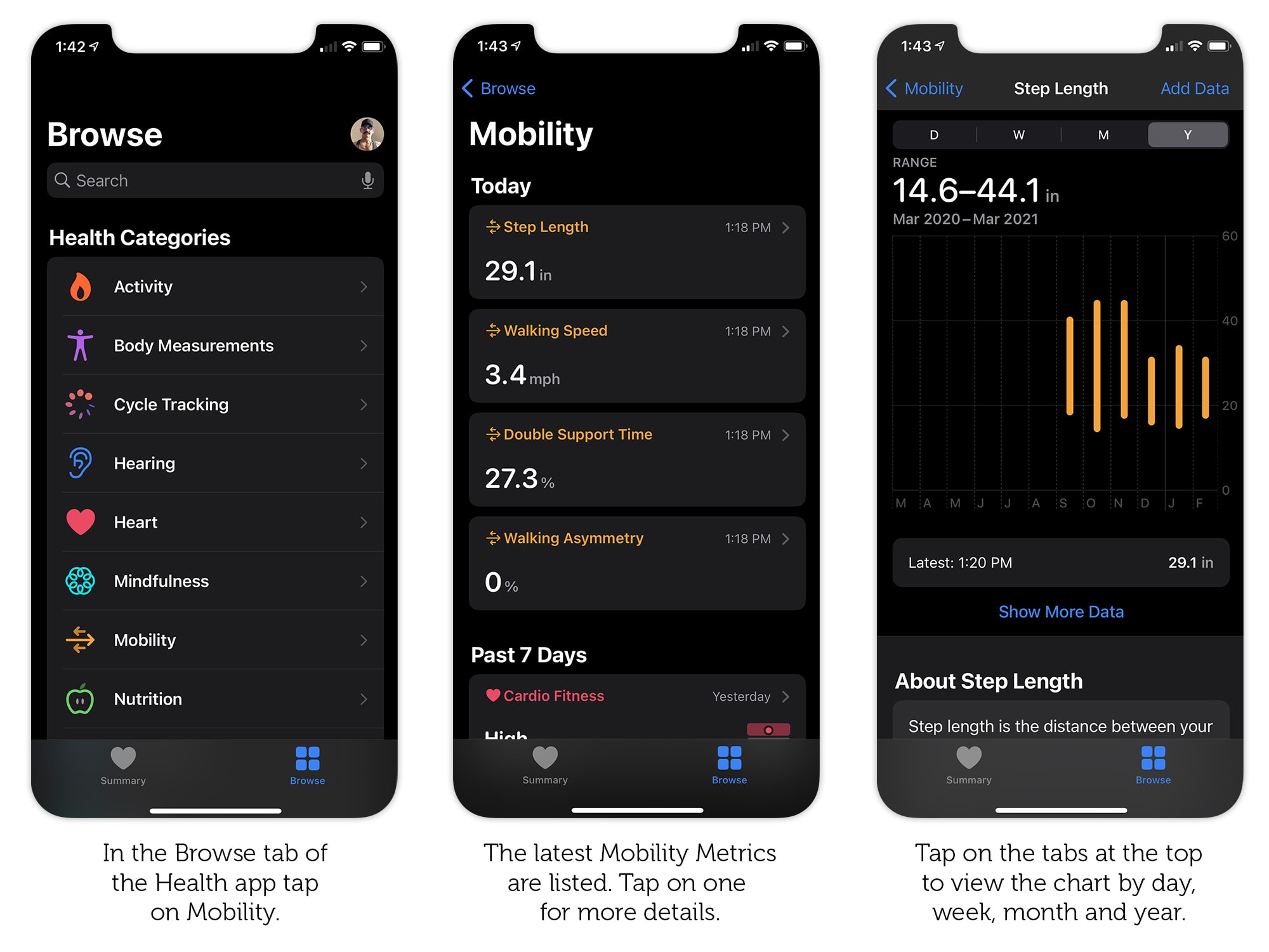
To return to standard activity tracking, you must change your primary mobility status back to Upright.
Choose “Upright” Option
- Tap “Primary Mobility”.
- Select “Upright” from the list of options.
- Confirm your selection when prompted.
🔄 Sync Time: Most users see the change reflected on their Apple Watch within 1–5 minutes. No manual refresh or restart is required under normal conditions.
This single change disables Wheelchair Mode and instructs your Apple Watch to revert to tracking steps, standing, and walking-based metrics.
Verify Change on Apple Watch
After updating the setting, confirm that the change has taken effect.
Check Activity App
- On your Apple Watch, open the Activity app.
- Look for the Stand ring—it should now appear as the third ring (after Move and Exercise).
- If the Roll ring is gone, the switch was successful.
🕒 Troubleshooting Tip: If no change occurs after 5 minutes, try restarting both devices and ensure Bluetooth is active and connected.
Sometimes, a temporary sync delay can prevent the update from appearing immediately.
Common Misconceptions Clarified
Many users waste time trying fixes that don’t work because of widespread misinformation online. Let’s clear up the most common myths.
❌ Triple-Clicking Digital Crown Does Nothing
- Some believe pressing the Digital Crown three times disables Wheelchair Mode.
- In reality, this shortcut controls Accessibility features like VoiceOver or AssistiveTouch—not mobility tracking.
- Unless you’ve customized this gesture, it has no effect on the Roll ring.
❌ No Toggle in Apple Watch Settings
- There is no switch for Wheelchair Mode in the Watch app or on the watch itself.
- All changes must go through the iPhone’s Health app—this is the only official method.
❌ It’s Not a Glitch
- Seeing the Roll ring doesn’t mean your watch is broken.
- This is a fully supported, intentional feature designed to offer accurate fitness tracking for wheelchair users.
Understanding this helps prevent unnecessary frustration and misguided troubleshooting.
Prevent Accidental Activation
While rare, someone might change your mobility setting during device setup or while exploring the Health app.
Review During Setup
- When pairing a new Apple Watch, the setup process asks about your mobility type.
- Always verify “Upright” is selected if you walk regularly.
Lock Health Details (Optional)
- Use Screen Time > Content & Privacy Restrictions to disable editing of Health data.
- This prevents accidental or unauthorized changes—especially useful in shared households.
🔐 This extra layer of protection ensures your fitness tracking remains consistent and accurate.
What Changes When You Turn It Off?
Switching back to Upright mode alters how your Apple Watch interprets and displays your activity.
Roll Ring Replaced by Stand Ring
- The Roll ring, which tracks wheelchair propulsion, disappears.
- The Stand ring returns, requiring you to stand and move slightly each hour to close it.
Workout Suggestions Update
- The Workout app begins suggesting walking, running, or gym-based activities.
- Options like “Wheelchair Walk” or “Wheelchair Run” will no longer appear unless manually selected.
Historical Data Remains Intact
- All activity logged while in Wheelchair Mode stays in your Health app.
- Data is preserved and correctly labeled—no loss of progress or daily rings.
Apple maintains data integrity regardless of mobility status changes.
Compatibility and Requirements
Ensure your devices meet the minimum requirements for managing mobility settings.
Supported Devices
| Device | Requirement |
|---|---|
| Apple Watch | Series 1 or later with watchOS 3+ |
| iPhone | 6s or later with iOS 14 or later |
| Health App | Must support Mobility category (introduced in iOS 14) |
📱 Update Tip: If you don’t see the Mobility option, update your iPhone to the latest iOS version. Older versions lack this feature.
Keeping your software up to date ensures full access to Apple’s health and fitness tools.
Troubleshooting: Change Not Applying?
If the Stand ring doesn’t return, follow these steps to resolve sync issues.
Force Sync Apple Watch
- Open the Watch app on iPhone.
- Go to My Watch > General > Reset > Reset Sync Data.
- Wait 5–10 minutes for re-sync.
💡 This clears temporary glitches without deleting personal data.
Restart Both Devices
- iPhone: Press and hold side button + volume down until slider appears. Slide to power off. Turn back on.
- Apple Watch: Press and hold side button until power slider appears. Swipe to power off. Hold side button to restart.
Then check the Activity app again.
Check Bluetooth Connection
- Open Control Center on iPhone and ensure Bluetooth is on.
- In the Watch app, confirm your watch shows “Connected” under My Watch.
📶 Weak or broken connections delay syncing and prevent updates.
Why Apple Includes Wheelchair Mode
Apple designed this feature to provide equal fitness tracking accuracy for wheelchair users.
Inclusive Activity Tracking
- Calories burned are calculated based on upper-body exertion during wheelchair use.
- Distance and speed are measured using motion sensors optimized for rolling movement.
- Propulsion time replaces standing time as a health benchmark.
🌟 This ensures wheelchair users get meaningful feedback just like walkers do.
It’s part of Apple’s broader commitment to accessibility and inclusive design—ensuring everyone benefits from health technology.
Summary: Key Steps to Disable Wheelchair Mode
| Step | Action |
|---|---|
| 1 | Open Health app on iPhone |
| 2 | Tap profile icon (top right) |
| 3 | Go to Health Details > Mobility |
| 4 | Select “Upright” as primary mobility |
| 5 | Wait 1–5 minutes for Apple Watch to update |
✅ Result: Roll ring gone. Stand ring restored. Normal activity tracking resumes.
Final Tips
- No third-party apps needed—use only the official Health app.
- Avoid misleading guides claiming to fix this via accessibility shortcuts.
- Contact Apple Support if the Mobility option is missing—your iOS may need an update.
- Educate others: Share this guide to stop the spread of incorrect fixes.
Turning off Wheelchair Mode isn’t complicated—once you know where to look. By adjusting your Primary Mobility setting in the Health app, you regain the familiar Activity experience in minutes. Whether the mode was enabled by mistake or during a trial, the fix is fast, official, and fully reversible.